Configuration
After enabling the module, visit Administration > Configuration >
Media > Local TTS Settings (/admin/config/media/local-tts) to
configure the module. The settings are split across two tabs: System
and Voices.
System tab
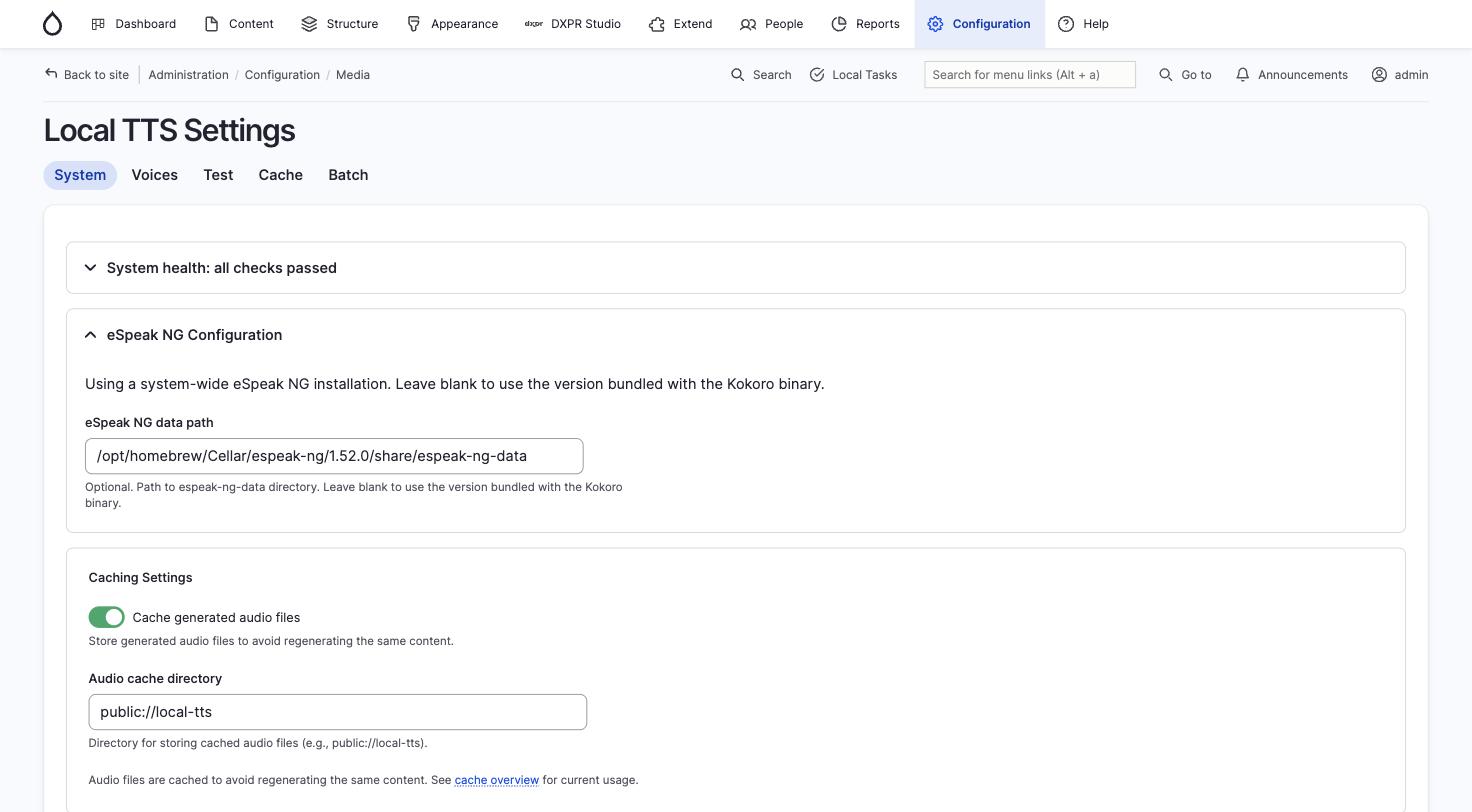
The System tab (/admin/config/media/local-tts) contains system health,
eSpeak configuration, caching, and security settings.
System health
A collapsible health check panel at the top verifies that the koko binary, ffmpeg, and eSpeak NG are installed and working. Expand it to see the status of each component.
eSpeak NG configuration
Set the path to the espeak-ng-data directory on your server. Common
locations:
- macOS (Homebrew):
/opt/homebrew/Cellar/espeak-ng/[version]/share/espeak-ng-data - Linux:
/usr/share/espeak-ng-data
Leave blank to use the version bundled with the Kokoro binary.
Caching settings
- Cache generated audio files: enable or disable file-based caching of generated audio
- Audio cache directory: defaults to
public://local-tts/
Cache management
- Maximum cache size (MB): limit on disk space used by cached files (default: 1024 MB). Least recently used files are automatically deleted when this limit is exceeded.
Security settings
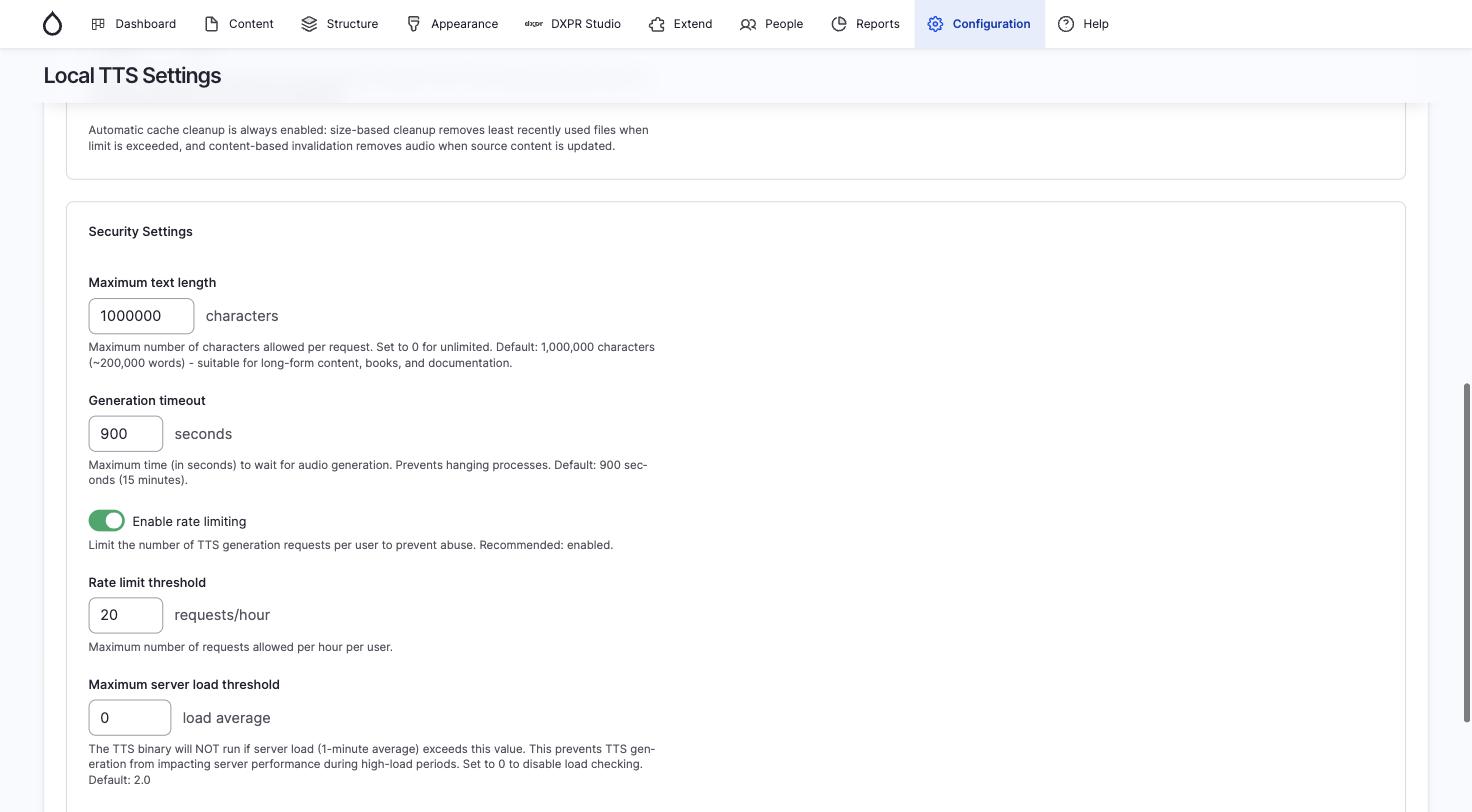
- Maximum text length: caps the number of characters that can be converted in a single request (default: 1,000,000)
- Generation timeout: maximum time in seconds for a single generation (default: 900 seconds / 15 minutes)
- Enable rate limiting: limits the number of generation requests per user per hour (recommended: enabled)
- Rate limit threshold: maximum generation requests allowed per hour per user (default: 20)
- Maximum server load threshold: pauses generation when server load exceeds this value; set to 0 to disable (default: 0)
Voice settings
The Voices tab (/admin/config/media/local-tts/voices) controls voice
selection, content generation, and player options.
Default voice per language
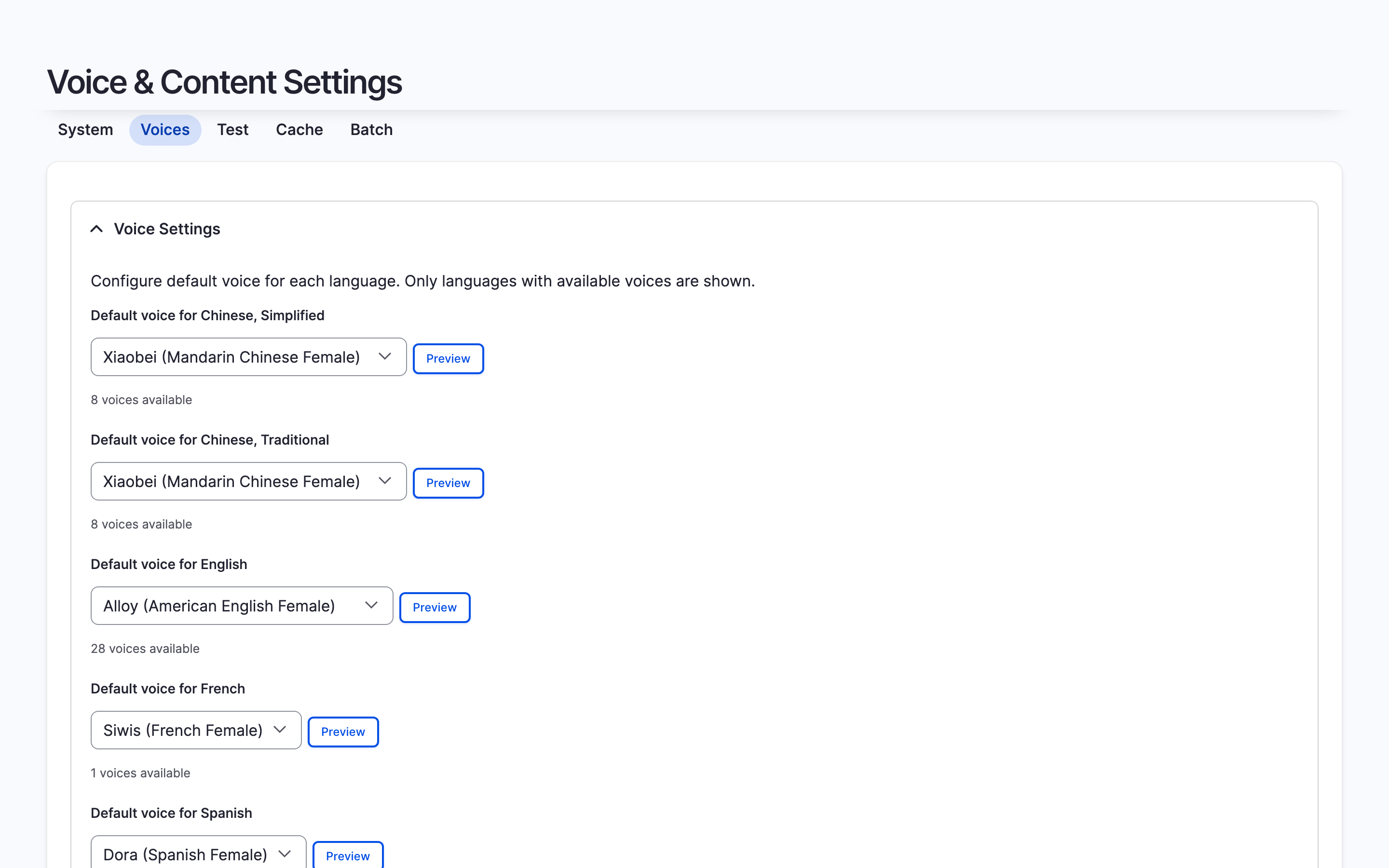
Set the preferred voice for each language your site supports. Only languages with available Kokoro voices are shown. Each dropdown lists all voices for that language with a Preview button to hear a sample sentence before committing.
Default speech speed
Speed multiplier from 0.5x (slow) to 2.0x (fast). The default is 1x.
Generation settings
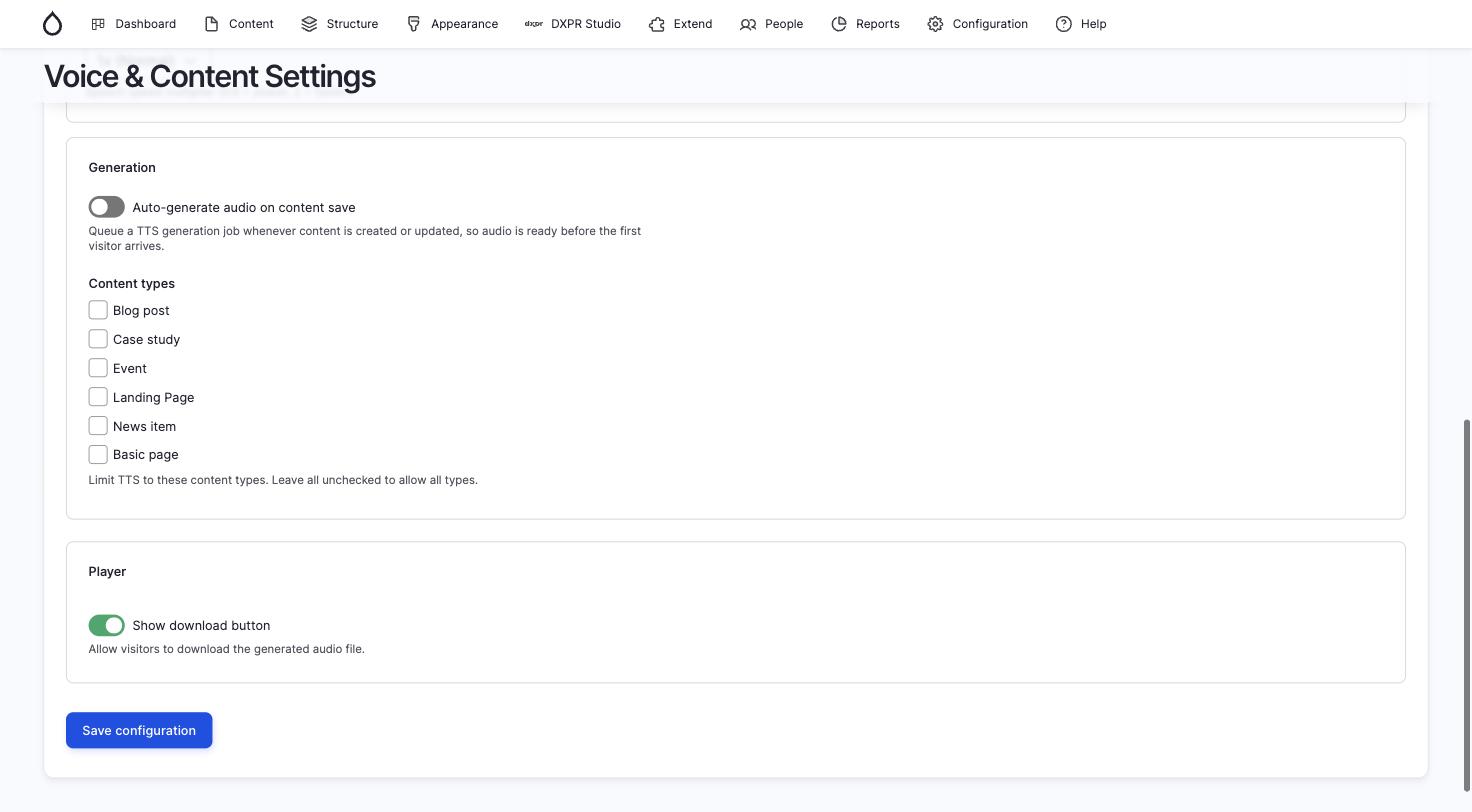
- Auto-generate audio on content save: when enabled, a TTS generation job is queued automatically whenever content is created or updated, so audio is ready before the first visitor arrives
- Content types: limit TTS to specific content types (e.g. Blog post, Landing Page). Leave all unchecked to allow all types.
Player settings
- Show download button: allow visitors to download the generated audio file
Permissions
Two permissions control access:
- Administer Local TTS settings: access the configuration forms
- Generate local text-to-speech audio: required for visitors to use the TTS player; grant this to the Anonymous role for public use
Queue processing
Audio generation runs in the background via Drupal's Queue API. When a visitor requests audio for uncached content, the module queues the job and returns a polling URL. The JavaScript player checks this URL every 3 seconds until the audio is ready.
Queue items are processed during cron runs. To ensure timely audio delivery, configure cron to run frequently (every 1 to 2 minutes) or use a dedicated queue runner:
# Process the TTS queue directly
drush queue:run local_tts_generate
Playback progress
The player saves playback position to localStorage every 5 seconds.
When a visitor returns to the same page, the player offers to resume
from the saved position. Progress is cleared when playback reaches the
end.