Views Field Integration
Add a TTS player to each row in a Views display. This is useful for content listings such as blog indexes, podcast archives, or article feeds where visitors may want to listen to individual items.
Add the Views field
- Edit or create a View at Structure > Views
(
/admin/structure/views) - Click Add in the Fields section
- Search for TTS Player and add it
- Configure the field label and position, then click Apply
- Save the View
See it in action
How it works
The Views field plugin (LocalTtsPlayer) is attached to the
node_field_data base table via hook_views_data_alter(). For each
row in the View, it renders a TTS player for that node using the
shared TtsPlayerBuilder service.
Voice and speed settings use the site-wide defaults from the Voices tab.
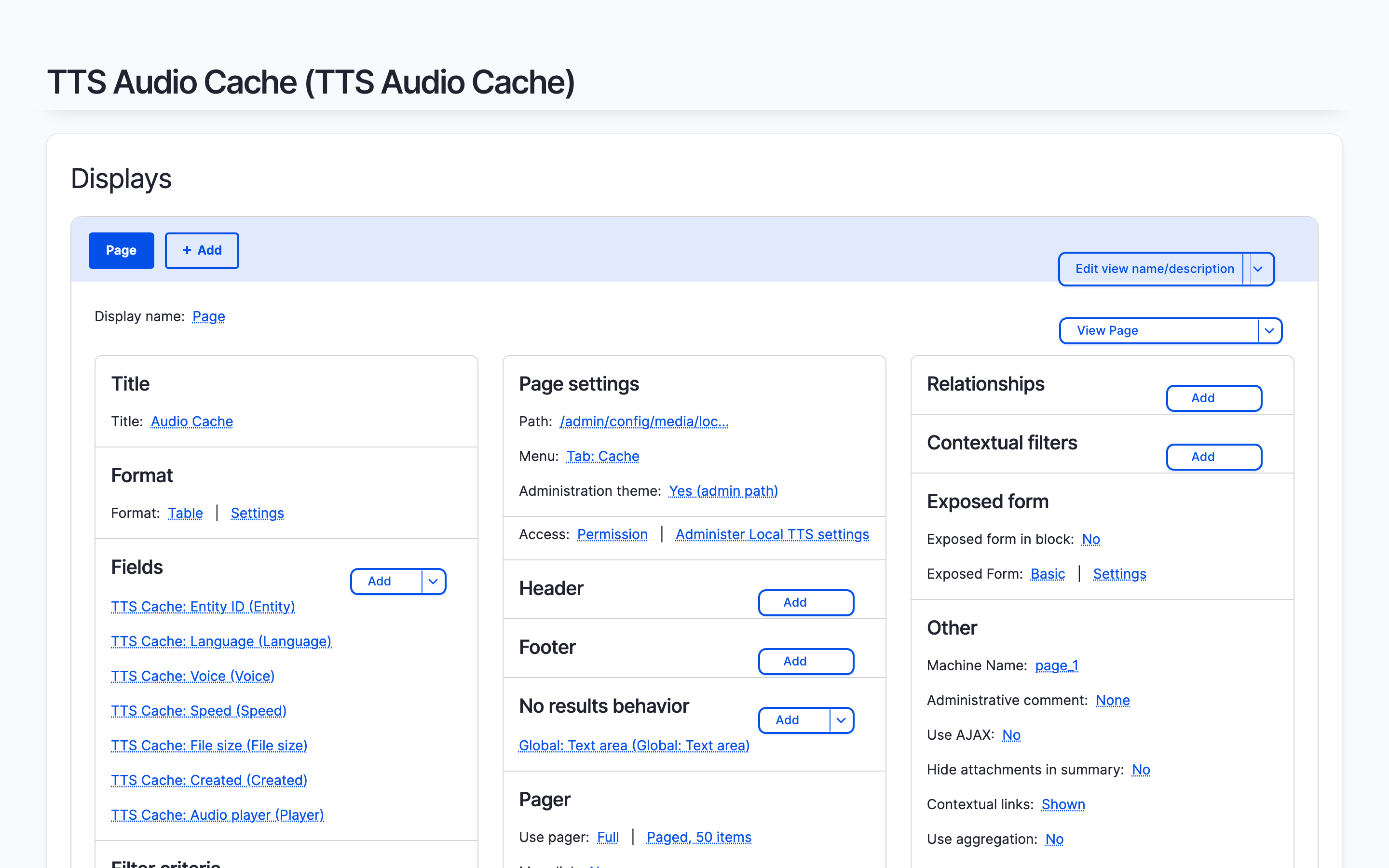
Cache overview View
The module bundles a second Views integration for the TTS cache table. This powers the cache overview at **Configuration > Media > Local TTS
Cache** (
/admin/config/media/local-tts/cache), which shows all cached audio files with inline players, file sizes, voice, language, and creation date.
The cache View exposes the local_tts_cache table as a Views base
table with these fields:
| Field | Description |
|---|---|
| Player | Inline audio player for the cached file |
| File size | Size of the OGG file on disk |
| Voice | Kokoro voice used for generation |
| Language | Language code of the audio |
| Created | When the audio was generated |
When to use this method
- You build content listings where each row should have its own player
- You want visitors to preview audio directly from a listing page
- You build a custom admin view of generated audio
Limitations
- Currently limited to nodes (
node_field_data); other entity types are not supported in Views - No per-row voice or speed configuration; all rows use site defaults
- The player renders for every row, which may be slow on Views with many items