Entity Field Integration
Add a dedicated TTS player field to specific content types. This gives you per-bundle control over which content types have TTS, and lets you configure voice, speed, and volume per display mode via the field formatter.
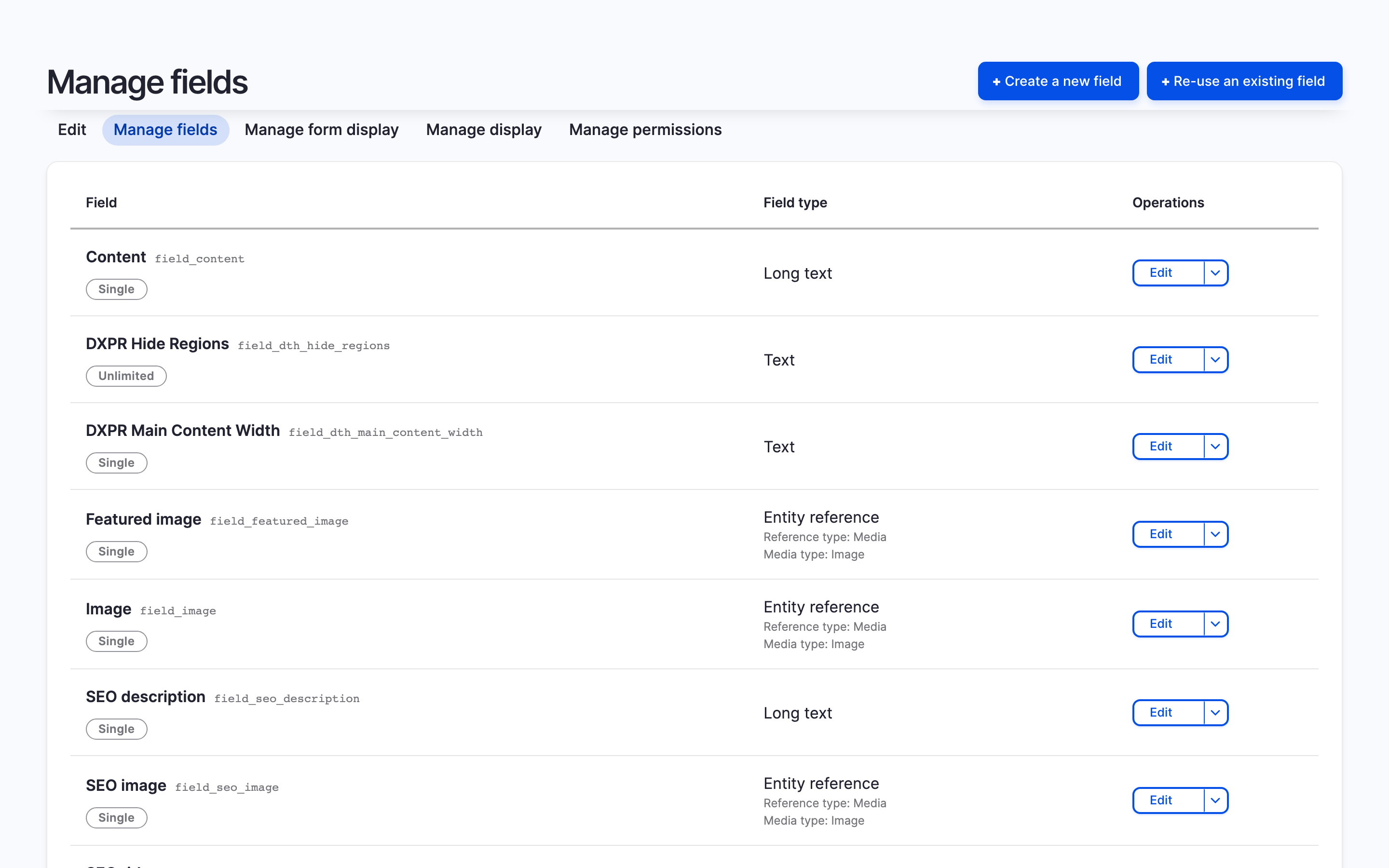
Add the field
- Go to Structure > Content types > [Your type] > Manage fields
(
/admin/structure/types/manage/[type]/fields) - Click Create a new field
- Select Local TTS Player as the field type
- Give it a label (e.g. "Audio player") and click Save
Position the field
- Go to Manage display for the same content type
(
/admin/structure/types/manage/[type]/display) - Drag the TTS player field to the desired position
- Click the gear icon to configure the formatter settings
Formatter settings
The field formatter (LocalTtsPlayerFormatter) exposes these options
per display mode:
| Setting | Description |
|---|---|
| Voice | Override the site-wide default voice for this content type |
| Speed | Override the default speech speed |
| Volume | Set initial volume (0.0 to 1.0) |
| Fields | Select which fields to include in the audio extraction |
Leave Voice and Speed blank to inherit the site-wide defaults from the Voices tab.
See it in action
Layout Builder
The field works with Layout Builder. After adding the field to the content type, it appears as a block in Layout Builder's block picker. Drag it to any region in your layout.
When to use this method
- You need different voice or speed settings per content type
- You want TTS only on specific bundles (e.g. articles, not pages)
- You use Layout Builder and want to position the player precisely
- You need per-display-mode configuration (e.g. show on Full but hide on Teaser)
Limitations
- Requires adding a field to each content type individually
- Field storage is created even though no data is stored per entity (the field type exists only to enable the formatter)
- For a lighter option without field storage, use the extra field